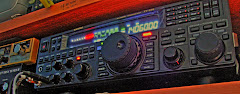
Que este pequeno artigo sirva, para quem como eu, necessita de configurar o programa DXLOG (para concursos /Contest), para funcionar com o keyer interno do Icom IC-7610 sem necessidade de keyer externo.
Para tal, basta ter configurado o interface desta maneira:
Acessar via: OPTIONS -> CONFIGURE INTERFACES
1º Selecionar a porta correspondente (No meu caso COM4), e Radio 1
Selecionar SETUP
Importante, No KEYING & CONTROL, tem que selecionar o RTS (PIN7) como CW. Se fizerem esta seleção no DTR (PIN4) não funciona.
Quando se assinala 1 ano da morte do nosso colega e amigo João Costa, CT1FBF, aqui fica um dos muitos apontamentos que tenho com ele, aquando da visita do Jordi, EA3EZG
sábado, 26 de fevereiro de 2022
Após 25 anos como radioamador, eis que sou presenteado com os primeiros diplomas DXCC da ARRL
No primeiro dia de teste do meu recente Xiegu G90, tive uma agradavel surpresa:
Após ligar a chave e morse no local errado, o radio comecou a apitar sem parar, e apareceu uma mensagem no quadrante a dizer COMM LOST
Após varias tentativas de re-inicar o equipamento, retirar o painel....... a solução seria, recarregar firmware. Mas para não me precipitar, contactei o apoio a cliente de radioditty (support@radioddity.com), que 30m depois tinha uma possivel solução, com uma explicação:
The described situation does happen whenever the communication between the Base-unit (that the part that connects to the power and the antenna) and the Display-unit (that´s the front part with all the operation controls) can not be established. Such thing often does happen, if the blue USB-cable had been connected between G90 and PC before the G90 had been turned on. However nothing to worry about. Together we´ll get you going!
It is now required to update the Base-unit and the Display-Unit. Whilst having to do that anyhow, I´d advise to update it with version 1.75 as version 1.77 (which quite likely is on your G90) unfortunately turned out to have some bugs. A new version is expected within the next weeks (due to Covid-19 that had been delayed).
OK, back to your G90:
All the firmware, software, and user manuals can be found in the Support area on our official website by the following steps:
www.radioddity.com->Support->choose the brand of your radio->click on your radio model name
Within the archive you will find everything needed (files, documentation, program, ...) to perform the update. Please follow exactly the instructions as given. I personally often forget to checkmark the '1K Option' when doing the XModem filetransfer which causes the update to fail.
After doing the update for both parts (Base-unit as well as Display-Unit), turn off the G90, fully disconnect it from the power supply, wait a few seconds before you reconnect it to the power supply.
Press the FUNC-key and keep it depressed. Then, additionally momentarily press the power button to power on the radio. You will be asked if you want to perform a 'Main Reset'. Release the FUNC button. Confirm the question regarding 'Main Reset' by pressing the PRE/ATT button (YES).
Now your G90 should be fine and waiting for you to enjoy.
Whenever you turn off your G90, remove any TRS plug (from the blue USB-cable) that might have been inserted in one of the communication
-ports (Base-Unit 3.5mm TRS 'COMM' socket, Display-unit: bottom left side 3.5mm TRS socket).
No meu caso, foi so necessário efetuar Upload de firmware da main-unit.
espero que este meu relato possa ajudar possiveis utilizadores com o mesmo problema que eu tive.